whitsonX - Getting Started
1. Introduction
Welcome to the whitsonX user manual, where you can learn how to use the software and its available workflows.
whitsonX is a reservoir engineering and development planning platform designed to help engineers evaluate well performance and make informed development decisions. The software combines production forecasting, type well prediction, well spacing, depletion, development optimization, and economic evaluation to help users understand existing assets and evaluate future drilling opportunities.
whitsonX brings production data, reservoir engineering methods, and data-driven models together in a field-wide workflow. Users can organize assets into Fields, Projects, and Drilling Units (DSUs), forecast well performance, evaluate the effects of spacing and parent-well depletion, compare development scenarios, and assess their economic impact.
2. The Basics
Let's get you started with some of the basic parts of whitsonX.
2.1 Login
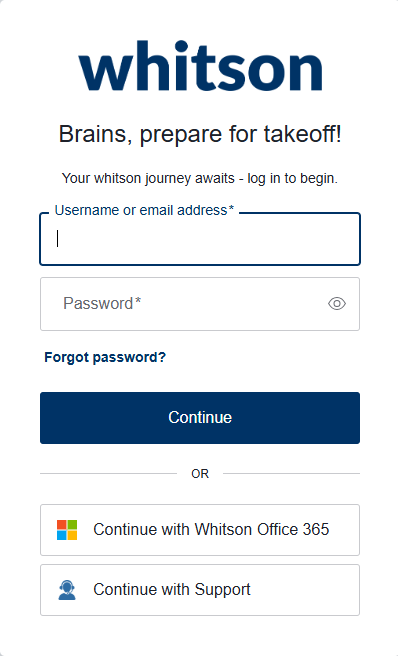
- Go to the relevant domain name, e.g. yourcompanyname.x.whitson.com
- Login with either your username and password or Microsoft Azure Active Directory (AD).
2.2. Overview of Important Basics
Once logged in, you will see an overview of all the fields currently available in your database, as shown below. The actions listed below are some of the most commonly used tools in whitsonX
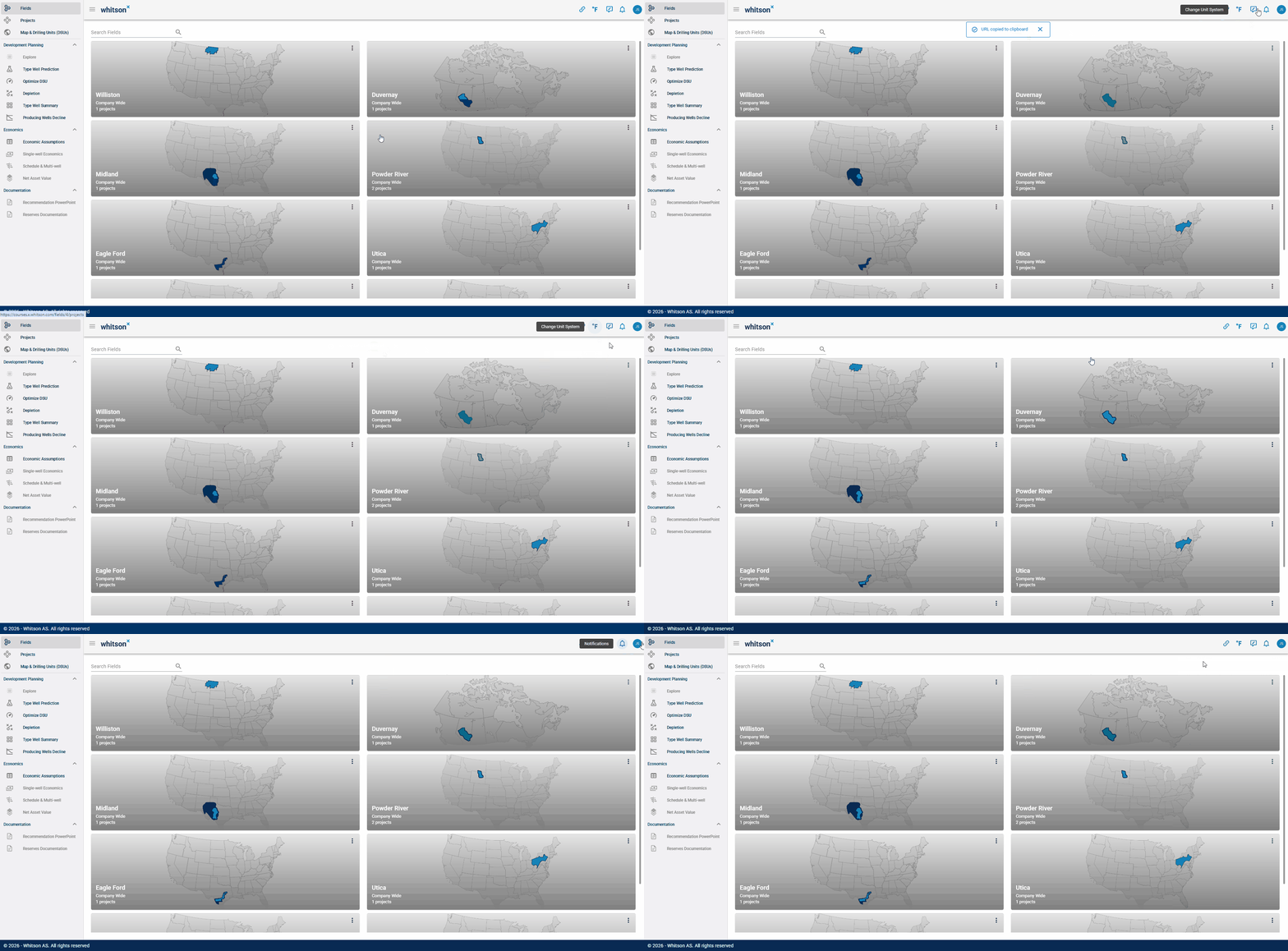
- Copy URL: Copy the URL of the current page to quickly share or return to the same location.
- Change Unit System: Change the unit system used to display data throughout the software.
- Support Ticket / Send Feedback: If you experience a bug, have a technical question, or would like to suggest an improvement, submit a support ticket. You may also contact the support team by sending an email to x@whitson.com.
- Notifications: View software notifications and other relevant updates.
- Edit Frontend View: Adjust your browser view as needed. You can zoom in or out, hide the navigation panel, or press F11 to enter or exit full-screen mode.
- Hard Refresh: Press Ctrl + Shift + R to perform a hard refresh of the frontend and clear the browser cache. This can be useful if a page becomes stuck or if recent changes are not displaying correctly.
2.3. Zoom Plots
Zooming and navigating plots is an essential part of working with engineering software. Below you can see the different ways you can interact with plots in whitsonX, including how to:
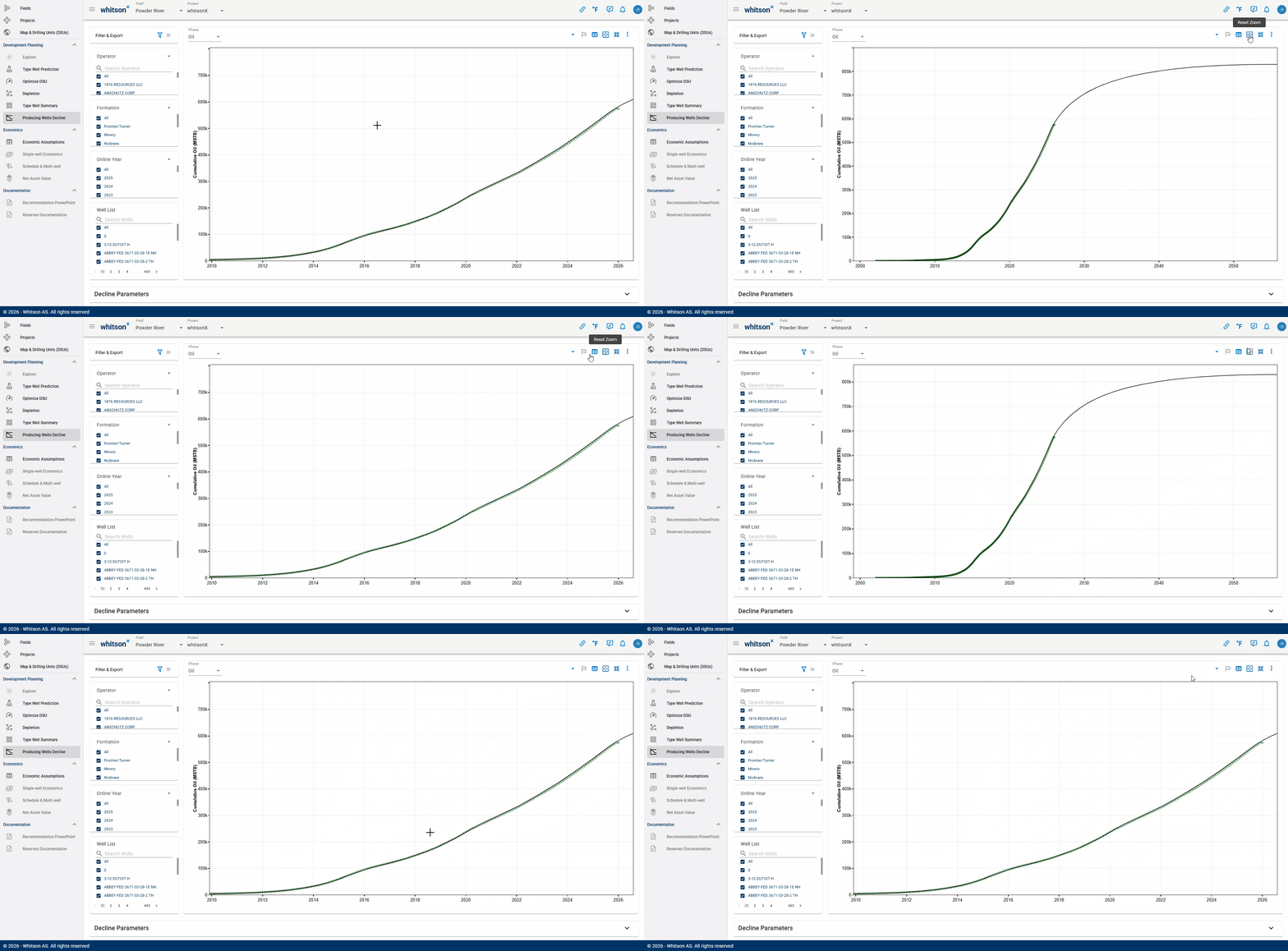
- Zoom in on a specific area of a plot.
- Reset the zoom to the default view by double-clicking inside the plot area or using the reset icon in the upper-right corner.
- Scale both the X- and Y-axes simultaneously while keeping the origin fixed.
- Scale a single axis, either X or Y, while keeping the origin fixed.
- Drag an axis up, down, left, or right to adjust the displayed range.
- Set the axis scale by entering a specific numerical value.
- Download a digital copy of the data displayed in the plot.